

BigCommerce
Auto-publish articles to your BigCommerce blog with an API account and WebDAV credentials.
Connect BigCommerce once and every new article publishes to your store's blog automatically.
Set it up
Enter your store hash
In Settings → Integrations, click Connect on the BigCommerce card and enter your Store Hash — the short code in your store's URL: your-store-HASH.mybigcommerce.com.
Create an API account
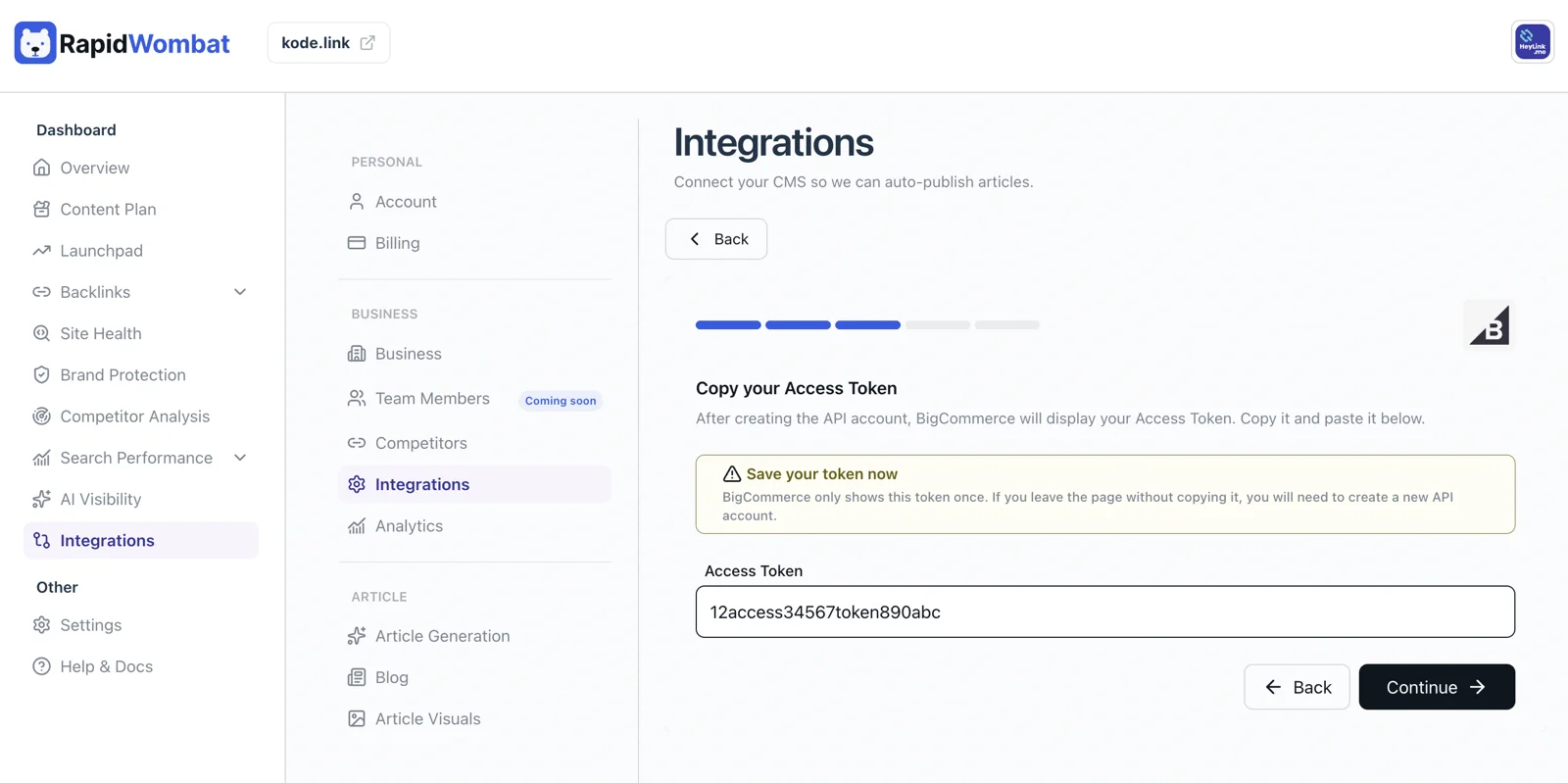
In your BigCommerce admin, create an API account and copy its Access Token into the wizard. BigCommerce shows the token only once — copy it right away.
Add WebDAV credentials
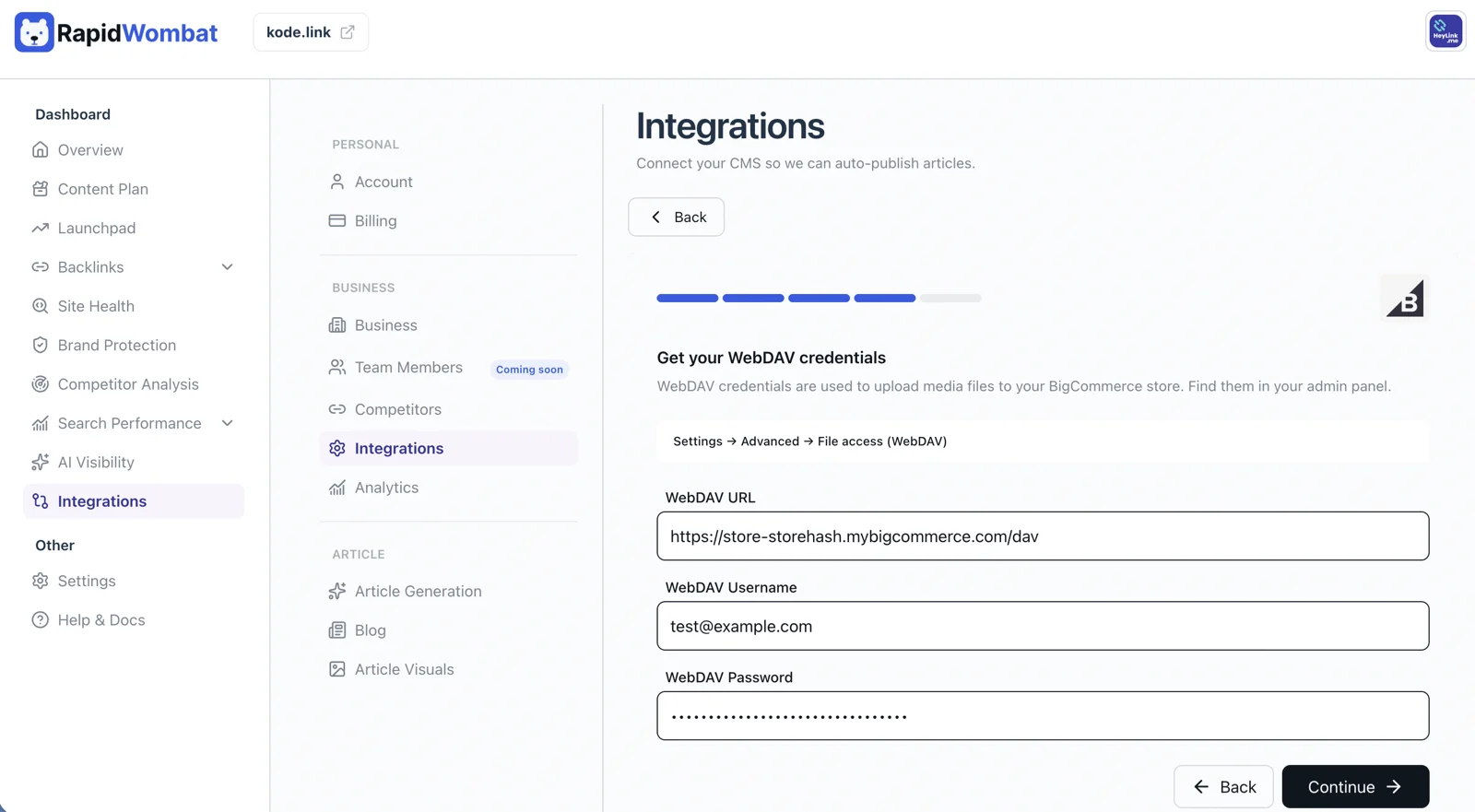
In your BigCommerce admin, open Settings → Advanced → File access (WebDAV) and copy the WebDAV URL, WebDAV Username, and WebDAV Password. RapidWombat uses WebDAV to upload article images.
Finish
Set the Author name, choose live or draft publishing, and click Connect.
Managing the connection
Use Edit on the BigCommerce card to update credentials, or Delete to disconnect. Published posts stay in your store.