

Blog
Settings → Blog sets up the blog RapidWombat hosts for you, then holds its title, domain, layout and colors.
The Blog page in Settings is where you set up and adjust the blog RapidWombat hosts for you on your own domain. Articles from Content Automation are published there automatically. For the full picture, see Managed Blog.
Set up your RapidWombat blog
If you haven't set up a blog yet, the Blog page ("Set up a blog we host on your own domain.") shows the setup wizard in three steps: Style, Details and Finish. The steps are explained in Managed Blog: Set it up. Click How It Works at the top of the page for a short video guide.
Blog title in the General card
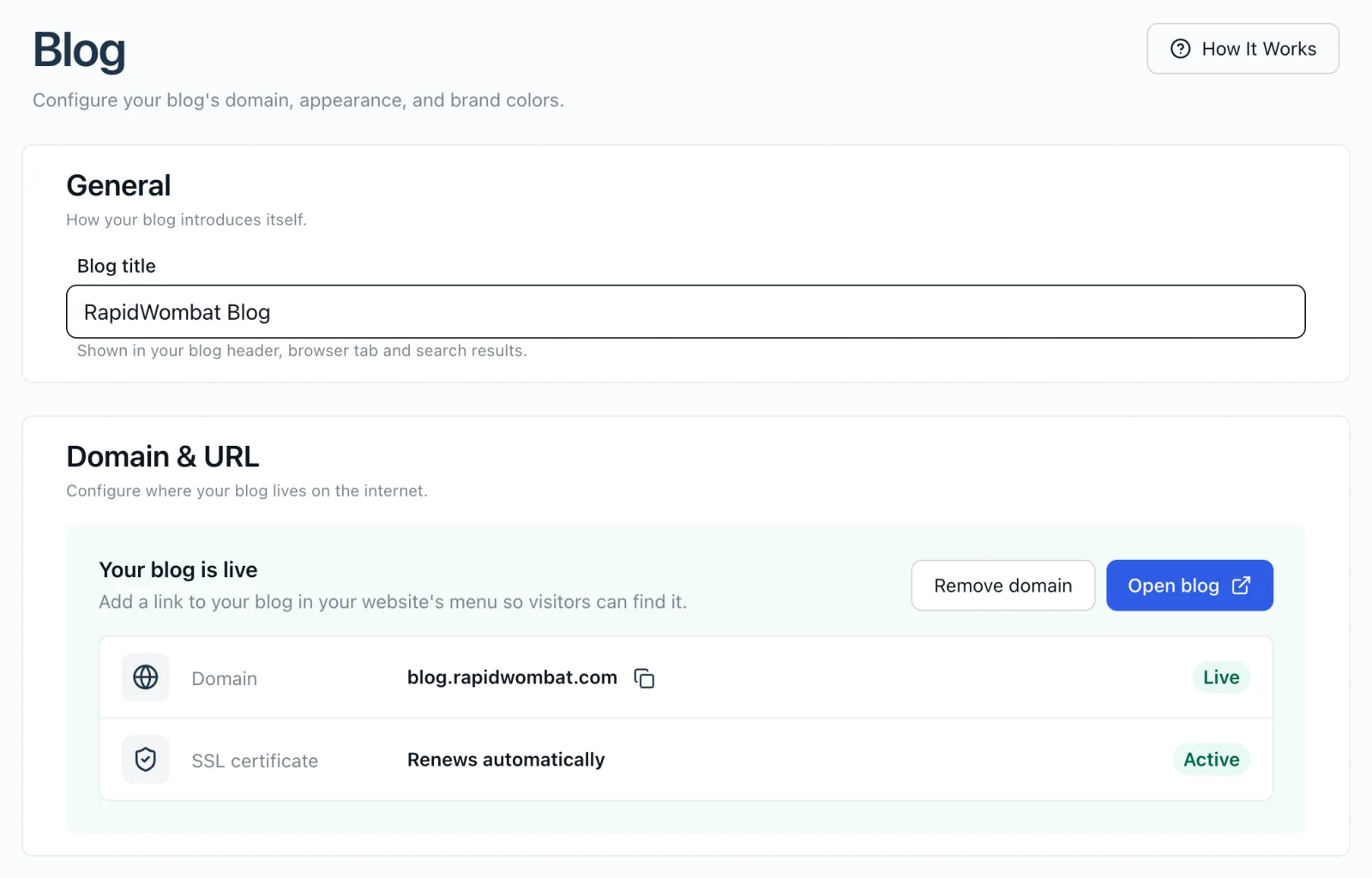
Once your blog is set up, the Blog page reads "Configure your blog's domain, appearance, and brand colors." The General card has Blog title, which is shown in your blog header, browser tab and search results.
Blog address in the Domain & URL card
The Domain & URL card on the Blog page shows where your blog lives and whether it is live:
- Domain: your blog's address, with a status: DNS setup needed, Verification needed or Live.
- SSL certificate: its status.
- DNS records: the records to add at your domain provider, each marked Needed or Added, with a copy button.
After adding the records, click Verify. Once the blog is live, Open blog opens it in a new tab. Remove domain disconnects the address so you can connect another one. The step-by-step DNS guide is the Custom Domain FAQ Guide.
Blog layout in the Appearance card
The Appearance card on the Blog page lets you switch the layout: Classic, Grid or Featured.
Blog colors in the Brand Colors card
The Brand Colors card on the Blog page offers four presets (TechNova Obsidian, Cyber Mint, Rose Quartz, Deep Sea) and five colors you can fine-tune: Button, Page Background, Content Background, Primary Text and Secondary Text.
Save your blog settings
After changing the title, layout or colors, click Save Changes at the bottom of the Blog page. Domain changes in the Domain & URL card apply on their own.