

Regenerate an Article
Rewrite an article's text or redraw its images from the article page, and buy more regeneration credits.
Not happy with an article? From its page you can have RapidWombat rewrite the text or draw new pictures, without touching the rest. Each regeneration uses one credit.
Regenerate Text
Regenerate Text is a card in the sidebar of an article page. It rewrites the article under the same title, with a new meta description and a new SEO score. The cover image and the pictures in the text stay, and a published article keeps its URL.
To rewrite an article's text:
- Open the article from Content Automation.
- In the sidebar, find the Regenerate Text card. The number on it is the text credits you have left.
- Press Generate. The rewrite starts at once.
If you have no text credits left, Generate opens the credit pack instead (see Buy more regeneration credits).
Regenerate Images
Regenerate Images is a card in the sidebar of an article page. It draws a new cover and new pictures for the text, and keeps the text as it is.
To draw new images for an article:
- Open the article from Content Automation.
- In the sidebar, find the Regenerate Images card. The number on it is the image credits you have left.
- Press Generate. The Regenerate Images window opens.
- Optionally, describe what the images should show in What should the images show? (up to 500 characters), for example "A small team around a laptop in a bright office". Leave it empty and the images are planned from the article.
- Press Generate in the window. To close it without regenerating, press Cancel.
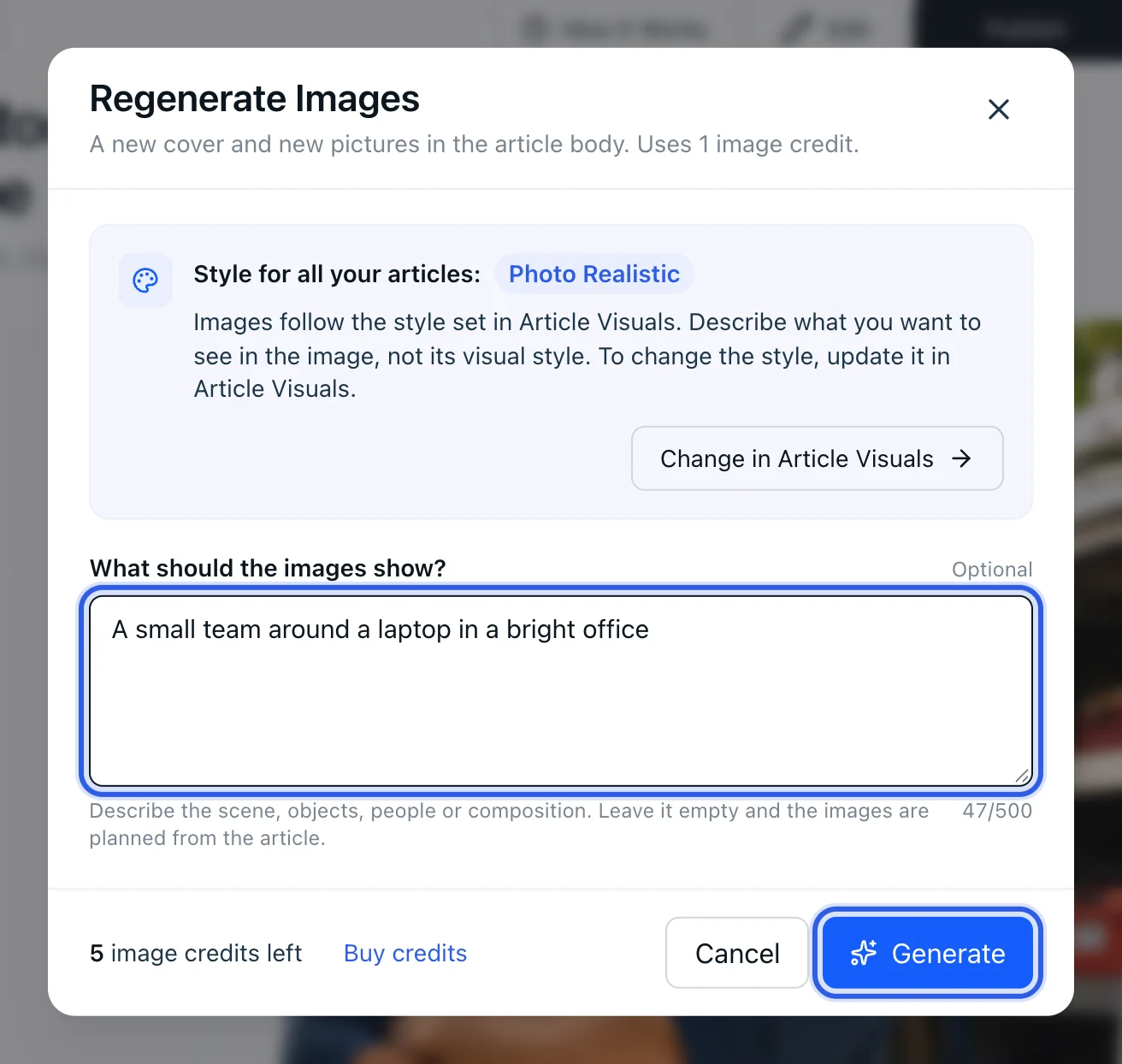
The window names the style set for all your articles under "Style for all your articles". Images follow that style, so describe what you want to see in the picture, not how it should look. To change the style, press Change in Article Visuals, which opens Article Visuals.
Your note replaces the generation instructions saved in Article Visuals for that one run. With the note empty, the saved instructions apply.
Buy more regeneration credits
Text and image regenerations each use one credit of their own kind: one text credit for Regenerate Text, one image credit for Regenerate Images. Every project gets 5 text and 5 image regenerations to start with.
To get more, press Buy more credits on either card in the article sidebar (or Buy credits in the Regenerate Images window). It opens a credit pack: a one-time payment, and the credits don't expire. The window shows what the pack adds and its price, and you pay without leaving the page.
While a regeneration runs
While an article is being regenerated, its status reads Generating, and Edit and Publish wait until it's done. You can leave the page: it updates on its own when the new version is ready.
Regenerating a published article
When you regenerate an article that is already published, the new version is sent on its own, once it's ready, to the posts the article already has. It isn't sent to a CMS you connected after the article was published.
An article that was never published stays unpublished after a regeneration. To send it, press Publish on the article page.